Tuesday, August 7, 2012

Google Plus: 8 Quick Tips and Tricks

for more web technologies tricks and secrets please visit insidew3.com
Tweak your email notification options. By default, Google Plus will spam your Gmail account with notifications for practically anything involving your new account. You can go to the Google Account options to uncheck all of the ones you don't want to get, thereby reducing your Gmail traffic considerably.
Google Plus profile sharing settings; click for full-size image.Google Plus profile sharing settings.Change your profile's field-sharing settings. Your Google Account has certain basic fields that it can share with anyone--but you don't have to go along with maximum sharing. Open your Google Account Profile and privacy settings, click Edit visibility on profile, and then click the individual profile fields and determine how public you want to make them.
Disable resharing in Google Plus; click for full-size image.Disable resharing in Google Plus.Disable resharing. Google Plus may make it easy for you to segregate who you share your information with, but your connections have no such limitations, meaning that something you share with a select few can still spread like wildfire across your networks. Nevertheless, you can disable resharing of a certain post after posting it: Just click the arrow in the upper-right-hand corner of the post and then click Disable resharing.
Check your Incoming feed. Unlike Facebook, Google Plus lets people share things with you even if you're not following them. Consequently you'll want to check your Incoming feed now and then to see whether you're missing out on anything interesting from someone you don't follow. Think of it as a spam folder that occasionally contains something interesting.
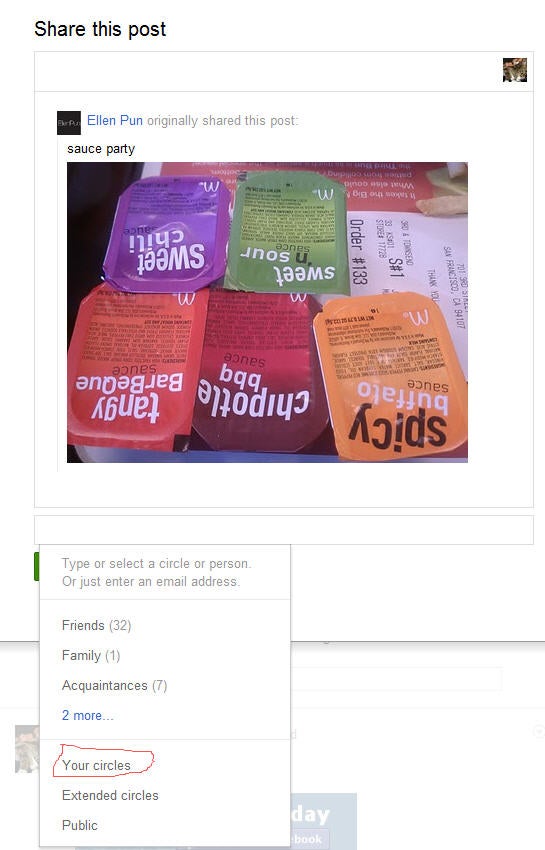
The Your Circles option in Google Plus; click for full-size image.The Your Circles option in Google Plus saves you a few clicks.Use the Your Circles option while sharing. Google Plus's Circles system is great for letting you use your Plus account to set barriers between the various groups of people you want to share things with. If most of what you share on Google Plus isn't especially privacy-sensitive, however, use the Your Circles sharing option to automatically share items with all of your circles and avoid the trouble of clicking each individual circle.
Start some Sparks. In addition to following people, you can search for interesting stuff to share about particular topics in the Sparks section on the side menu of the main page. Click Sparks, and search for things that you're interested in or browse through the featured topics; if you want to pin a search on your sidebar for easy future access, click theAdd Interest button under the search field.
Click through profile pictures. You can easily cycle through other people's profile pics by clicking on them.
Text formatting in Google Plus; click for full-size image.Text formatting in Google Plus.Add some basic formatting. As with Google Talk and Google Buzz, you can add basic text styles to some of your Google Plus text. Paired asterisks (*text*) make bold text, paired underscores (_text_) make italics, and paired dashes (-text-) make strikethroughs.

Thursday, May 3, 2012

How To Hide the people I have added to circles/have me in a circle?

for more web technologies tricks and secrets please visit insidew3.com
First make sure the Profile tab is selected by clicking it.

Click the “Edit Profile” button.

Then click anywhere on the circles section. The section should be highlighted in a light blue hue.

A window will show allowing you to control the visibility of your circles, down to the individual circle level. Once you are done editing, click “Save” followed by “Finished Editing” to get out of profile editing mode.

Tuesday, February 28, 2012

How To Create a poll on Google+

1. Create a Post with your poll question.


To begin, you create a post with your poll question and share it with whoever you like.

2. Disable Comments


At this point, I’d suggest disabling comments to make the poll choices more visible when they are added. This is not necessary, but recommended.

3. Add your poll choices in the Comments


Next, you add your poll choices as separate comments on your post and let the voting begin. Basically you will use +1′s as votes, and whichever choice with the most +1′s is the winner.

4. Conclude the polling with a Comment

When you want to end the poll, its a good idea to add one final comment and perhaps some additional information, like declaring a winner, and/or stating next steps based on the results. Here’s an example of a completed poll from +Mike Elgan.

Overall, this is a simple and effective polling method for Google+.

Sunday, February 26, 2012

Google Plus Symbols and Alt Symbols (copy and paste)

Want to impress your friends with cool and unique stream posts?
Below we list all of the special characters/symbols you can use on Google Plus.

To use any of these symbols, simply highlight and copy it (control+c), then paste it in your stream post (control+v).


©
¿ §
® ö
ƒ Α Β
Γ Δ Ε
Ζ Η Θ
Ι Κ Μ
Ν Ξ Ο
Π Ρ Σ
Τ Υ Φ
Χ Ψ Ω
α β γ
δ ε ζ
η θ ι
κ λ μ
ν ξ ο
π ρ ς
σ τ υ
φ χ ψ
ω ϑ ϒ
ϖ
v
Symbol
§
Zodiac Signs
Symbol Name
Aries (The Ram)
Taurus (The bull)
Gemini (The Twins)
Cancer (The Crab)
Leo (The Lion)
Virgo (The Virgin)
Libra (The Scales)
Scorpio (The Scorpion)
Sagittarius (Centaur The Archer)
Capricorn (Goat-horned, The sea goat)
Aquarius (The water bearer)
Pisces (The fish)
Random & Special Characters
♠ ♣ ♥
♦ ♪ ♫ ■ □ ▪ ▫ ▬ ▲ ►
▼ ◄ ◊ ○ ● ◘ ◙ ◦ ☺ ☻
☼ ♀ ▪ ▫ ▬ ☻
☺ ◙ ◘ ▀ € ♥

๏ ๐ ๑ ๒
๓ ๔ ๕๖ ๗ ๘ ๙ ๚ ๛ Ẁ
ẁ Ẃ ẃ Ẅ ẅ Ạ ạ Ả ả Ấ
ấ Ầ ầẨ ẩ Ẫ ẫ Ậ ậ Ắ
ắ Ằ ằ Ẳ ẳ Ẵ ẵ Ặ ặ Ẹ
ẹ Ẻ ẻ Ẽ ẽ Ế ế Ề ề Ể
ể Ễ ễ Ệ ệ Ỉ ỉ Ị ị Ọ
Æ ¢ ™ Ð ¹ º ç Þ ß ÿ æ â ã ¥ ¤ £ ¦
©
ª « ¬ ­® ¯
Ì Í Î Ï Ð Ñ Ò Ó Ô
Õ Ö × Ø Ù Ú Û Ü Ý Þ ß à á â ã ä å æ ç è é
ê ë ì í î ï ð ñ ò ó ô õ ö ÷ ø ù ú û ü ý þ ÿ Āā
Ăă Ąą Ć ć ĉ Ċ ċ ő Œ œ Ŕ
ŕ Ŗ ŗ Ř ř Ś ś Ŝ ŝ Ş ş Š
š Ţ ţ Ť ť Ŧ ŧ Ũ ũ Ū ū Ŭ
ŭ Ů ů Ű ű Ų ų Ŵ ŵ Ŷ ŷ Ÿ
Ź ź Ż ż Ž ž ſ ƒ Ǻ ǻ Ǽ ǽ
Ǿ ǿ ˆ ˇ ˉ ˘˙ ˚ ˛ ˜ ˝ ;
΄
₪ ₫ € ℅ l
№ ™ Ω e ⅛ ⅜ ⅝ ⅞ ∂ ∆ ∏
∑ - / · v 8 ∫ ˜ ≠ = = □ ▪ ▫ ◊
● ◦       
      fi fl ﬠ
שׁ שׂ שּׁ שּׂ אַ אָ אּ בּ גּ
דּהּ וּ זּ טּיּ ךּכּ לּ
מּנּ סּ ףּ פּ צּ קּרּ שּ
תּ וֹ בֿכֿ פֿ ﭏ ﭖ ﭗﭘ
ﭙ ﭺﭻ ﭼ
ﭽ ﮊ ﮋ
ﮎ ﮏ ﮐ ﮑ ﮒ ﮓ ﮔ ﮕ ﮤ
ﮥ ﯼ ﯽ ﯾ ﱞ ﱟ ﱠ ﱡ ﱢ
﴾ ﴿ ﷲ ﺀ ﺁ ﺂ ﺃ ﺄ ﺅ
ﺆ ﺇ ﺈ ﺉ ﺊ ﺋ ﺌ ﺍ ﺎ
ﺏﺐ ﺑ ﺒ ﺓ ﺔ ﺕ ﺖ ﺗ
ﺘ ﺙ ﺚ ﺛﺜ
ﺝ ﺞ ﺟ
ﺠ ﺡ ﺢ ﺣ ﺤ ﺥ ﺦ ﺧ ﺨ
ﺩﺪ ﺫ ﺬ ﺭ ﺮ ﺯ ﺰ
ﺱﺲ ﺳ ﺴ ﺵﺶ ﺷ ﺸﺹ
ﺺ ﺻ ﺼ ﺽﺾ ﺿ ﻀ ﻁ
ﻂ ﻃ
ﻄﻅ ﻆ ﻇ ﻈ ﻉﻊ ﻋ ﻌ
ﻍ ﻎ ﻏﻐ ﻑ ﻒ ﻓ ﻔ ﻕ
ﻖﻗ ﻘ ﻙ ﻚ ﻛ ﻜ ﻝﻞ
ﻟ ﻠ ﻡ ﻢ ﻣﻤ ﻥ ﻦ ﻧ
ﻨﻩ ﻪ ﻫ ﻬ ﻭ ﻮﻯ ﻰ
ﻱ ﻲ ﻳ ﻴﻵ ﻶ ﻷ ﻸﻹ
ﻺ ﻻ ﻼ
لم
ن ه و ى يً ٌ ٍ َ ُ
ِّ ْ % ٤ ٠ ١ ٢ ٣ ٥٦
٧ ٨ ٩
ホ 么 メ _ ャ `
ヲ _ カ シ ニ ♠ ♣
◄ ▬ ☻ ▬ ► ♣ ♠
Л п † ‡
█ ▌
▐ ░░▒▓
▓▒░░ ░░░▒▓
▓▒░░░
░▒▓
▓▒░ ▓▒░ ░▒▓
░░

▀▄▀▄▀▄▀▄▀▄

▄▀▄▀▄▀
═ ╬ ╦ ╩ ╦
╣╝╠ ╧ ╨ ╫ ╪
╥ ╤ ╢╡╟╞ ╜
⌠⌡│┌
┐└ ┘├ ┤┬ ┴ ┼
╛╚╙╘╗╖╕╔╓╒║
╬ ╫ ╪ ╩
╨ ╧ ╦ ╥ ╤ ╣ ╢ ╡ ╠ ╟
╞ ╝ ╜ ╛ ╚ ╙ ╗ ╘ ╗ ╖
╕ ╔ ╓ ╒ ║ ═

Even More Cool Symbols!


Special face:


Chess black :
♚ ♛ ♜ ♝ ♞ ♟
Chess White:
♔ ♕ ♖ ♗ ♘ ♙
Crosses
☩ ☨ ☦ ✙ ✚ ✛ ✜ ✝ ✞ ✠
Flowers
❀ ✿ ❁ ✾
Butterfly symbol:

Ƹ̴Ӂ̴Ʒ
Butterfly style 02:

εїз
Music Google Plus symbols
♪ ♫ ♩ ♬ ♭ ♮ ♯
Poker black:
♥ ♦ ♣ ♠
Poker White:
♡ ♢ ♤ ♧
Moon symbols:
☾ ☽
Sun symbols:
☼ ☀
Cloud and umbrella:
☁ ☂
Snowman:

Comet:

Stars and snowflake Google Plus symbols:
╰☆╮✡ ۞ ★ ☆ ⋆ ✩ ✮ ✯ ✰ ❇ ❈ ❅ ❄ ❆
Religion & belief Google Plus symbols
☯ ✡☨ ✞ ✝☥ ☦ ☧ ☩ ☪ ☫ ☬ ☭
Peace symbols:
✌☮
Risk radioactive and biological:
☢ ☣
Check symbol for Google Plus:

Hands pointing:
☚ ☛ ☜ ☝ ☞ ☟
Writing Symbols:
✉ ✍ ✎ ✏ ✐✑✒ ⌨
Scissors symbols:
✂ ✄
Phones symbols:
☎ ☏ ✆
Clocks:
⌛ ⌚
Airplane symbols:

Dinner:

Skull symbol:

Decorative symbols:
๑ ۩ ۞
Numeric Google Plus symbols:
①②③④⑤⑥⑦⑧⑨⑩ ⑪⑫⑬⑭⑮⑯⑰⑱⑲⑳
Letters:
ⒶⒷⒸⒹⒺⒻ ⒼⒽⒾⒿⓀⓁ ⓂⓃⓄⓅⓆⓇ ⓈⓉⓊⓋⓌⓍ ⓎⓏ
ⓐⓑⓒⓓⓔⓕ ⓖⓗⓘⓙⓚⓛ ⓜⓝⓞⓟⓠⓡ ⓢⓣⓤⓥⓦⓧⓨⓩ

Oriental symbols:
㊊㊐㊋㊌㊍㊎㊏ ㊐㊑㊒㊓㊔㊕㊖㊗ ㊀㊁㊂㊃㊄㊅㊆ ㊇㊈㊉
NEW: Chinese Symbols for Google Plus:
頹 - 衙 - 浳 - 浤 - 搰 - ㍭ - 煤 - 洳 - 橱 - 橱 - 煪 - ㍱ - 煱 - 둻 - 睤 - ㌹ - 楤 - ぱ - - 椹 - ぱ - ㍵ - 畱 - 煵 - 田 - つ - 煵 - 엌 - 嫠 - 쯦 - 案 - 迎 - 是 - 從 - 事 - 網 - 頁 - 設 - 計 - 簡 - 大

How to Tag Someone In A Post

for more web technologies tricks and secrets please visit insidew3.com


Tag Someone In A Post

In a comment box, type + or @ followed by the person's name. A box should appear containing the matching name (if the person exists). Note: Typing the name too fast may make the box disappear causing the mention attempt to fail. In the event this happens, backspace all the way back up to and including the + or @, and try to repeat the attempt again.

Once the name becomes a tab, you're done! Posting the comment will send a notification to the person that they were mentioned. The notification is sent regardless if a person mutes a thread.
If you want to prevent mentions from triggering, turn off the reshare option (but do not mention the person in the opening post since turning off reshare does not protect against mentions in the opening post).

Thursday, February 23, 2012

Hot video : How to transfer your Facebook friends to Google+ all at once

for more web technologies tricks and secrets please visit insidew3.com

Export Your Facebook Birthdays to Google

  1. Go to your Facebook profile and click the “Events” tab on the left-hand side
  2. On the “Events” page, at the top right-hand corner, click the blue drop-down menu (featuring a magnifying glass)
  3. From the drop-down menu, select “Birthdays” and you will be taken to the “Birthdays” page
  4. Click the drop-down menu from this page and select “Export Birthdays…”, a pop-up will offer up a URL for you to take and throw-around as you see fit
Now you have all the birthdays of your friends, family, co-workers, and acquaintances. As I said before, Google Calendar is a good place to put Birthdays.. so let’s do that!
  1. Go to your Google Calendar
  2. On the “Other Calendars” tab beneath “My Calendars”, you can add the Birthdays via the drop-down menu which features an option to “Add by URL”
  3. A pop-up will…pop-up, and you can paste the URL from Facebook into Google Calendars